Managed BYOD
Windows 11 Home – Not Managed Setup
The following guide will step you through how to set up a new Windows 11 Home device.
IMPORTANT: Only follow this guide if you ARE NOT part of your schools Managed BYOD process as you have opted out or your school has not offered it.
If you are unsure whether your school has a Managed BYOD process, please confirm with your school prior to proceeding with your device setup.
The following guide is only aimed at parents and students setting up a device that will not be part of the schools Managed BYOD. By setting up your device following this guide the device will need to be completely setup and managed by the parents and students.
The guide will step through the process for setting up a Windows 11 Home device. If you are unsure which version of Windows you have, please check the documentation that came with your device or confirm with your place of purchase, if necessary, before proceeding.
Before you begin, please ensure you have the following:
- Your device with Windows 11 Home.
- A stable internet connection.
- Fully charged device and connection to power.
- A personal Microsoft Account for the student with password and administrator access.
- Student’s school email address (firstname.lastname@mnstu.catholic.edu.au).
- Student’s school Password.
- Note: If you are a new student within our diocese you will not be assigned a student email, username or password until your first day of attendance at school. Please wait until you receive this information before attempting step 36 onwards in these instructions.
Setting up a Windows 11 Home Device – Not Managed
Follow the instructions or watch the video below to set up your new Windows 11 Home device. You can also download a copy of the instructions here.
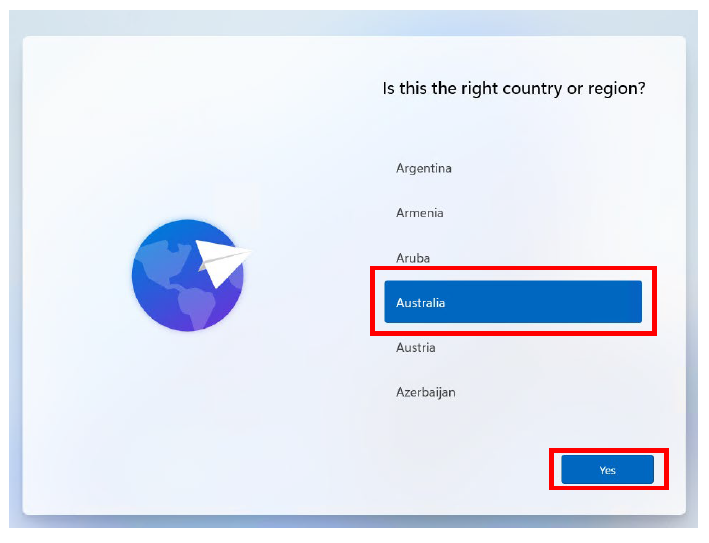
- When first setting up your new device, the following screen will be displayed. Select ‘Australia’ and then click ‘Yes’.
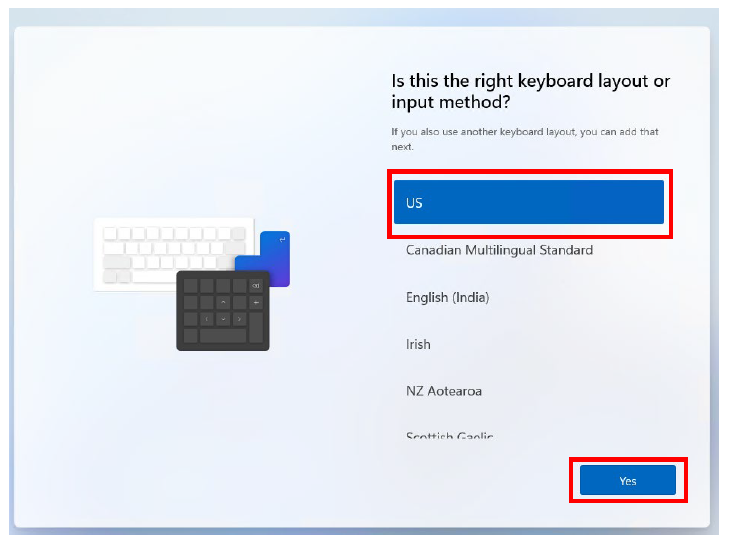
- Select ‘US’ as the keyboard layout and then click ‘Yes’.
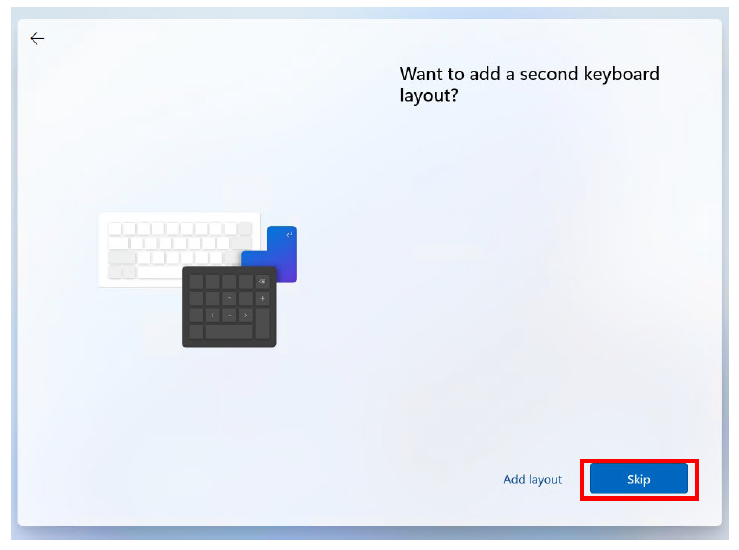
- When prompted to add a second keyboard layout simply click ‘Skip’ to continue.
- You should then be prompted to connect to an available network. Select a known and trusted network from the list and click ‘Connect’. Enter the appropriate password when requested.
Note: If your device is already connected to a cabled internet connection this screen will simply show the state of the connection (i.e. Connected, Internet).When you are connected to a network with Internet Access, click ‘Next’.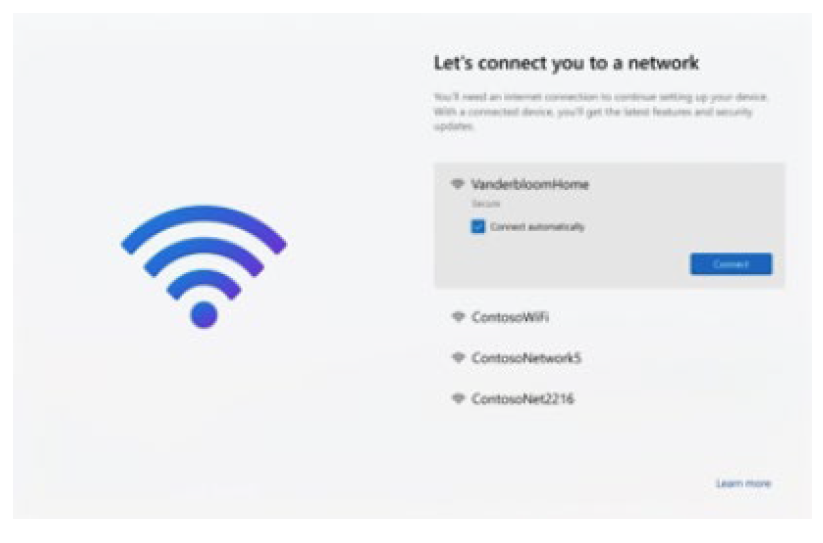
- The device will then check for updates, as shown below.
DO NOT TURN OFF YOUR DEVICE during this process.
This may take some time so ensure the device has power and watch for any prompts on screen.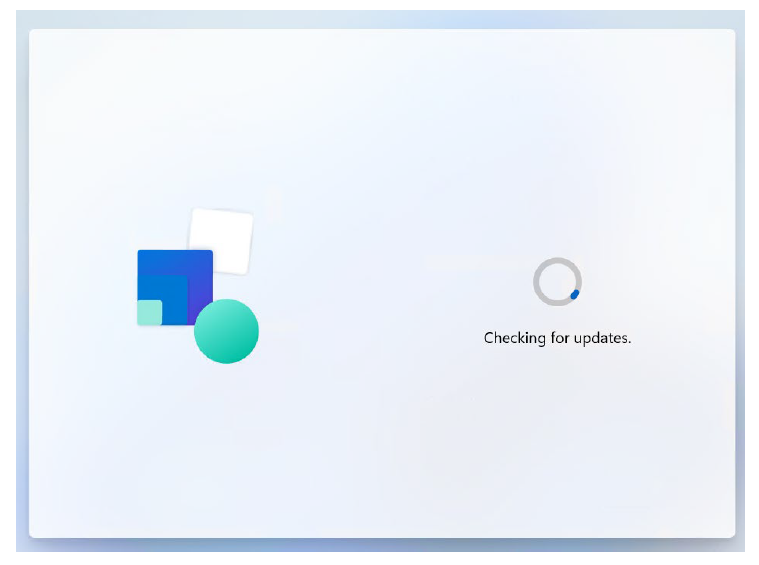
- Once the updates are applied you may be asked to accept the License Agreement.
Read the agreement and click ‘Accept’.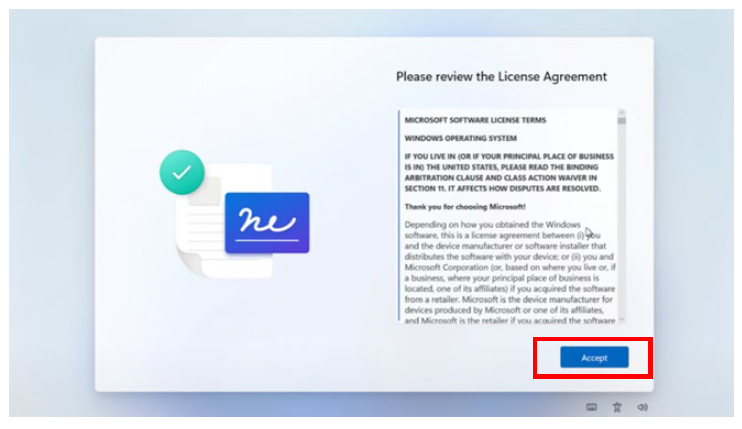
- You will then be asked to name your device. Choose an appropriate name that does not give away any personal information. Note the naming requirements displayed on screen.
Also note that this will be the name that appears if you are sharing your screen with your classroom display.
Name the device then click ‘Next’ to continue or choose to ‘skip for now’.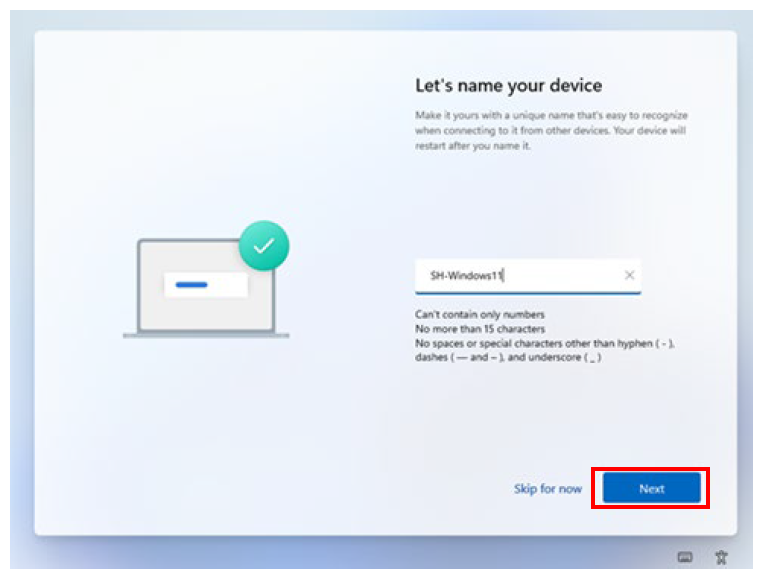
- You will now be asked to sign in with your Microsoft account. This should be the students personal Microsoft account (School accounts will not work with Windows Home).
If you do not already have a personal Microsoft account created for your child, we recommend doing this separately prior to completing this step. Click here to see a guide on how to setup a personal Microsoft account for your child.
Please note: As children are under 18 years of age you will need to have a parent account and it will automatically apply many Family Safety Features that will require attention at step 26.Once you have your personal Microsoft account details for your child ready click ‘Sign in’.
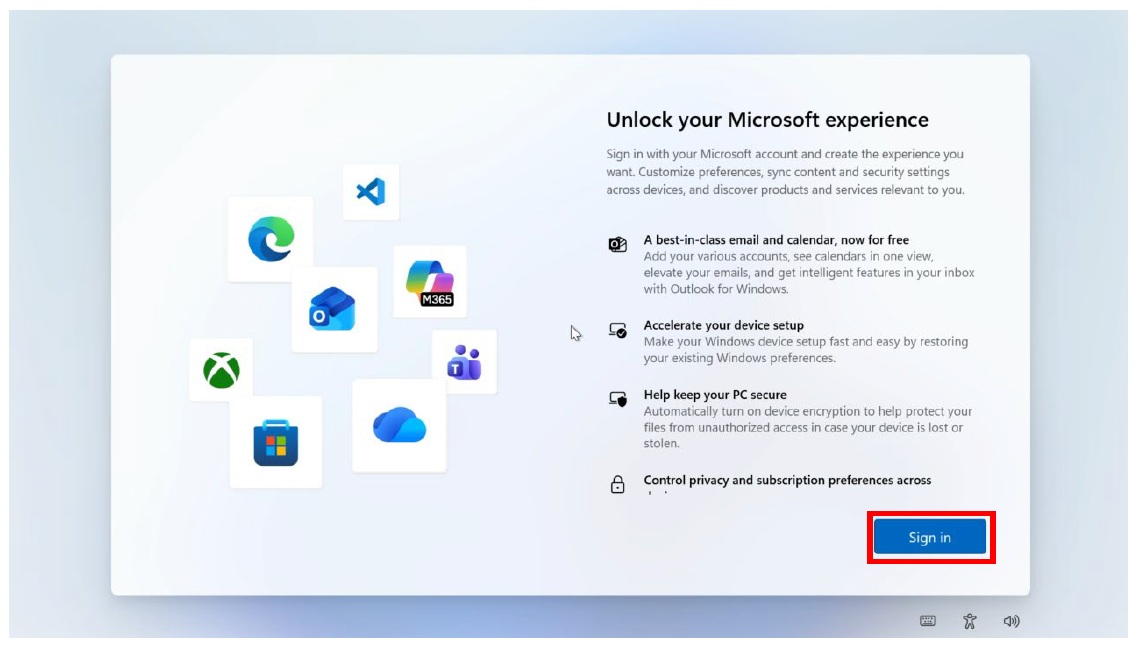
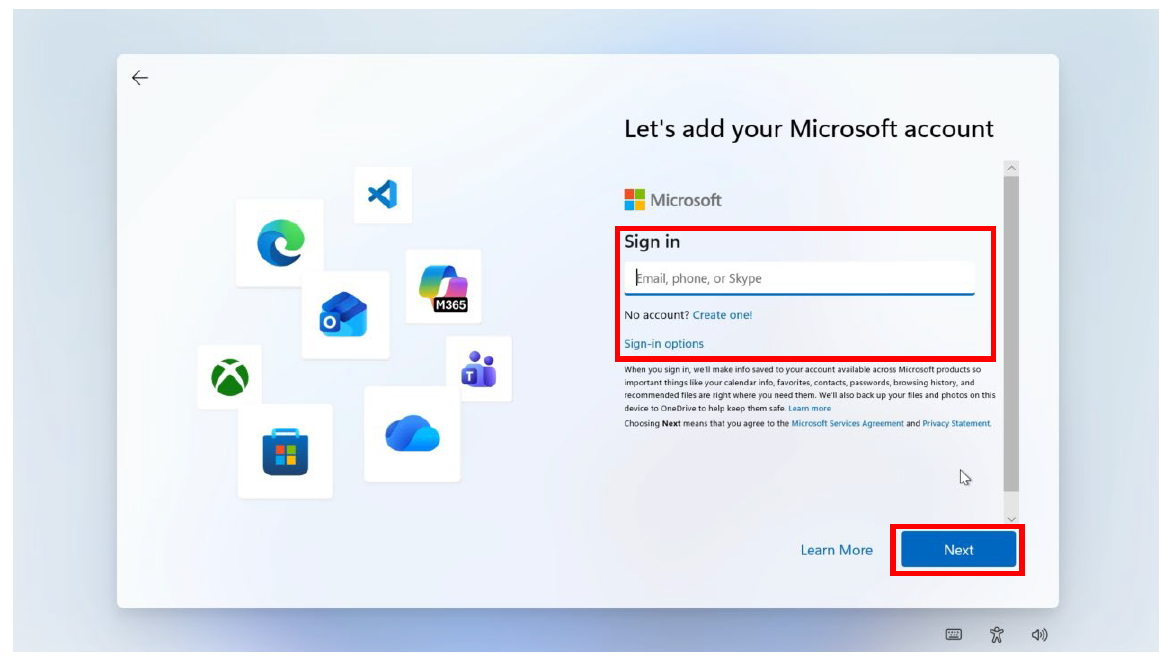
- You will now need to enter your child’s personal Microsoft account email address and then click ‘Next‘.
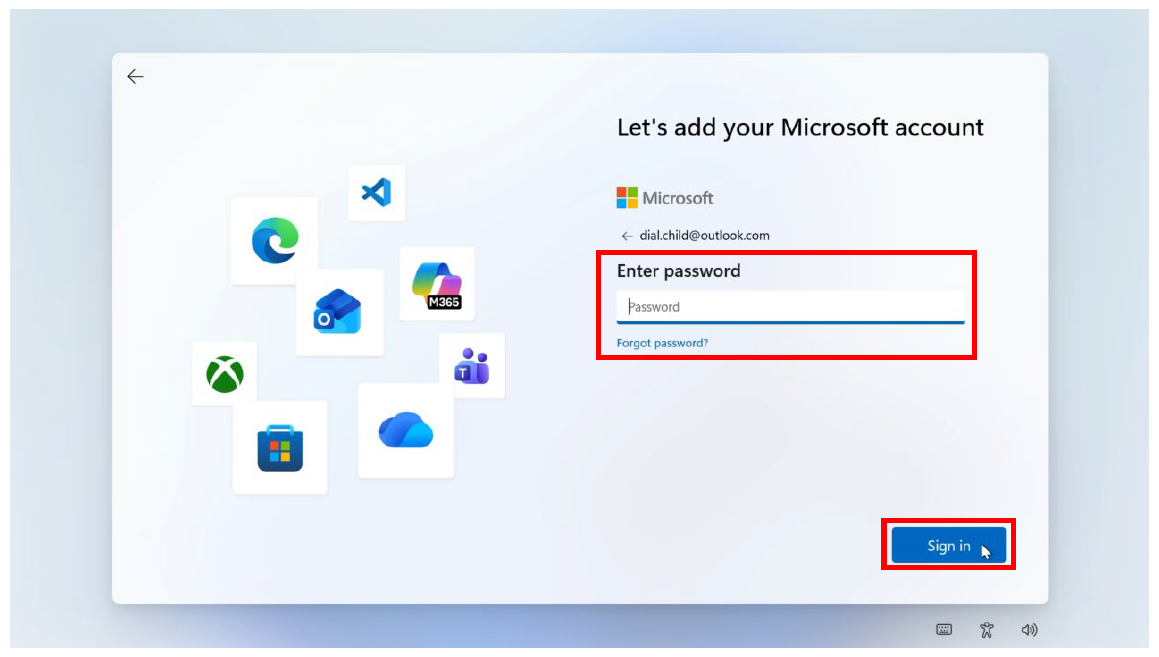
- Now enter the password for your child’s personal Microsoft account. Then click ‘Sign in’.
- You will now be asked how you would like to set up your device. Select ‘Set up as a new PC’ and then click ‘Next’.

- You will now be asked to create a PIN for your device. Click ‘Create PIN’ to continueNote: On some devices you may also be given the option of setting up other sign in methods such as fingerprint recognition or facial recognition. This will vary depending on the functionality of your device.

- On the following screen enter an appropriate PIN that your child will be able to remember.
This will be the method they use to log on to their device so it should be secure and memorable.Once you have entered your PIN and confirmed it, click ‘OK’ to continue.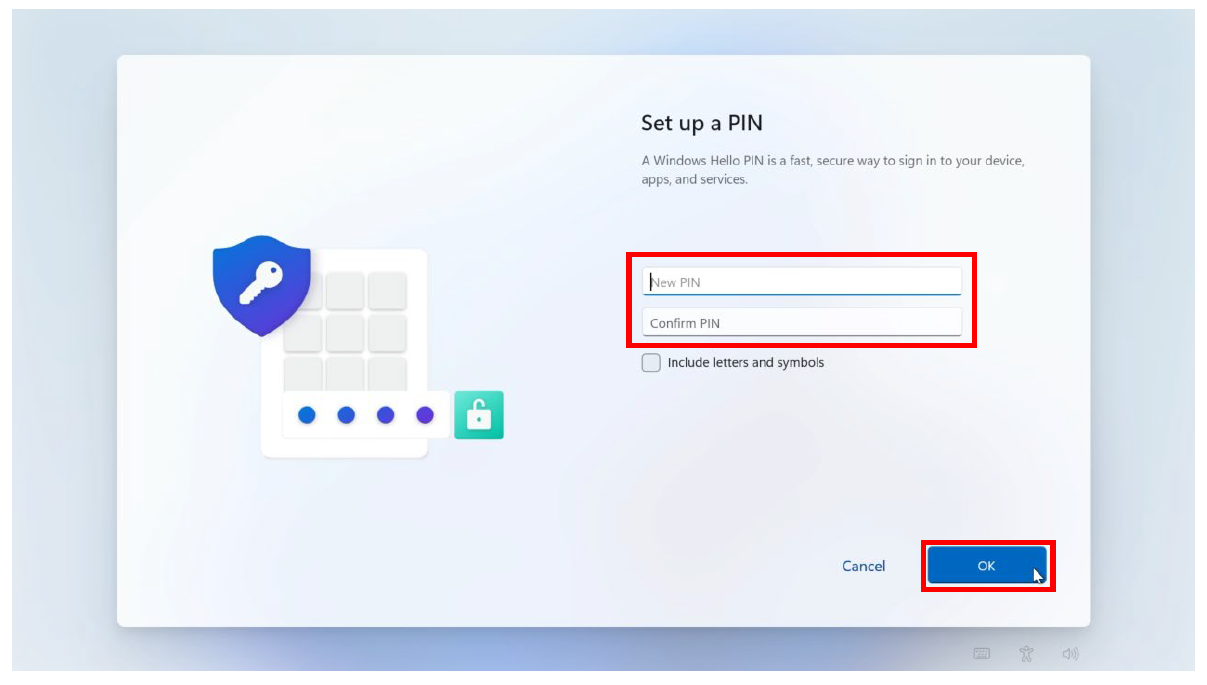
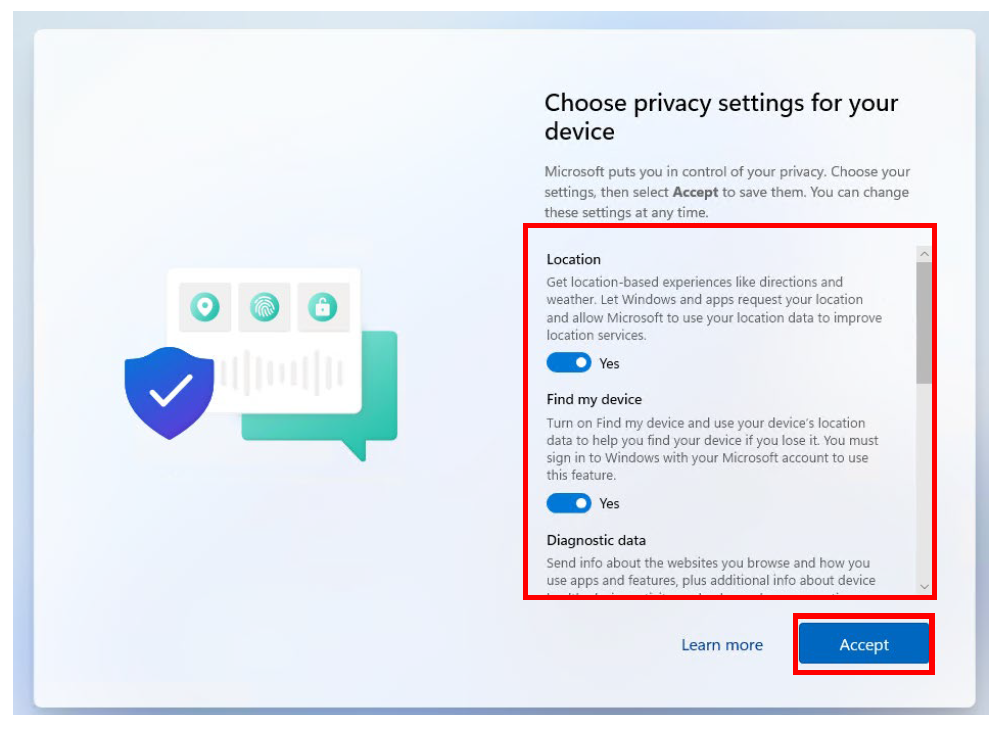
- You will then be prompted to select the privacy controls for your device. Select the options you feel are appropriate. We advise that you leave ‘Location’ and ‘Find my device’ enabled. This allows your device to be located if it is lost or stolen.Be sure to scroll down the list of options. When satisfied, click ‘Accept’.
- Next you will be asked to “customize your experience”. Select the options that you feel are appropriate. We recommend selecting the “School” option only. Once you have made your choices, click ‘Accept‘.
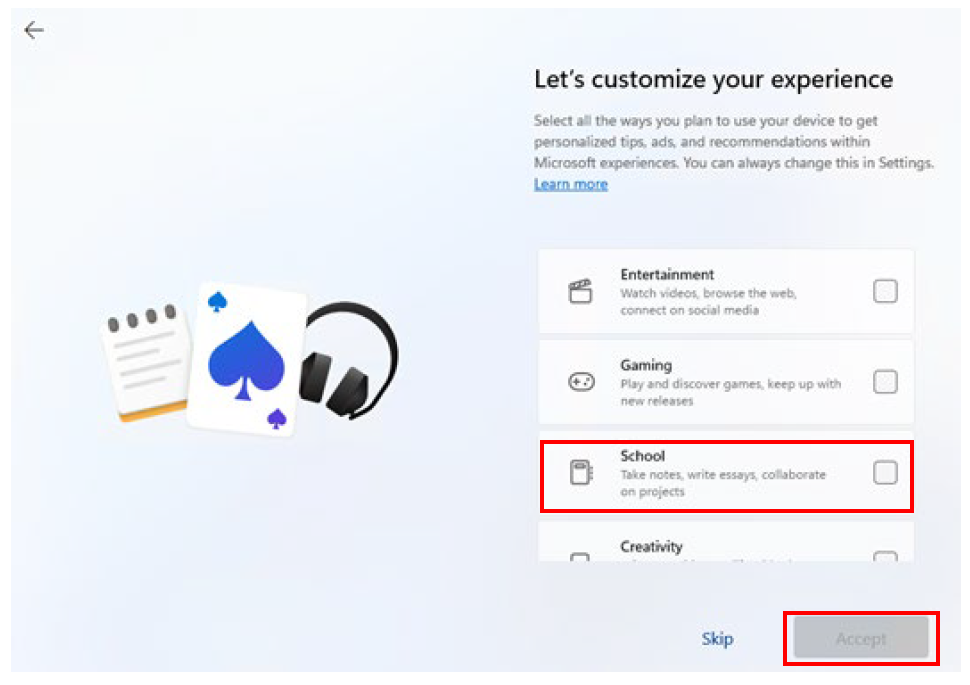
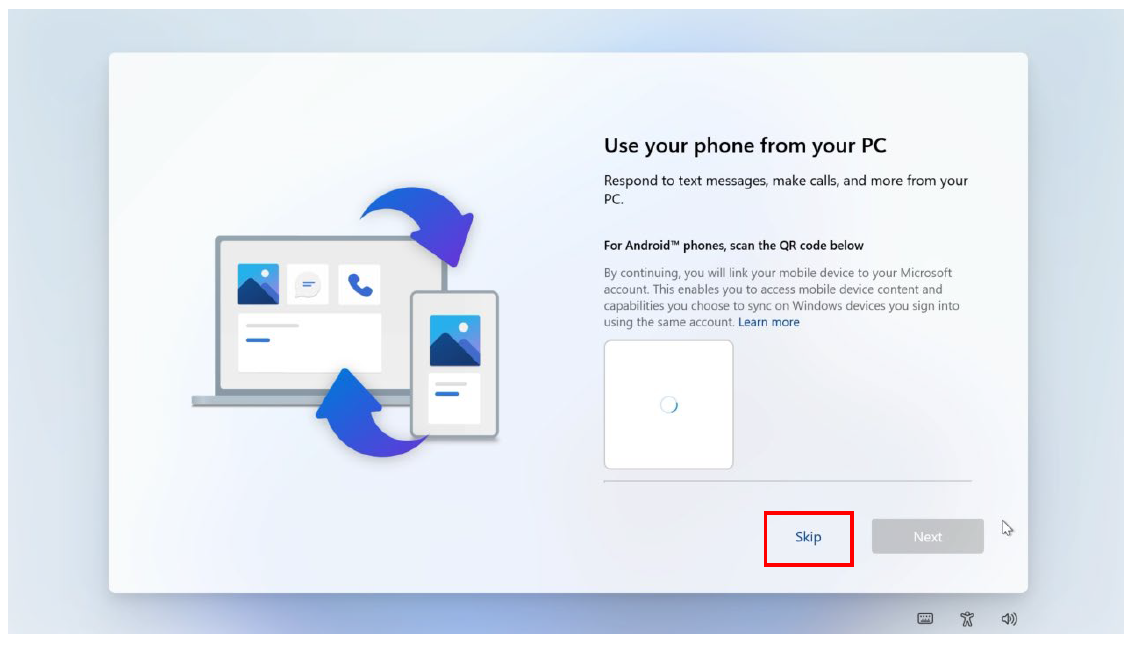
- Prompts may appear at this stage for other trial software such as Xbox Game Pass, antivirus software or Microsoft phone connections.
None of these are necessary for school and we recommend selecting ‘skip’ for any trials that are offered.
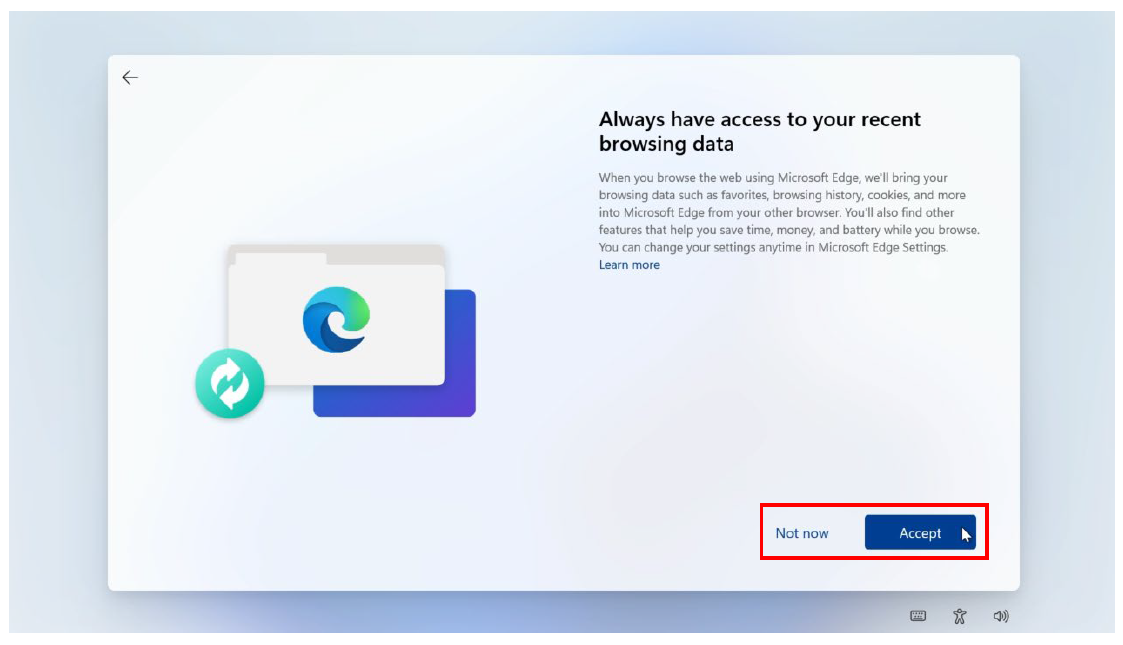
- The device may now ask if you would like to bring your browsing data into Microsoft Edge when using it. This is a personal choice so feel free to select either ‘Not now’ or ‘Accept’ to continue. This can always be changed in your device settings later.
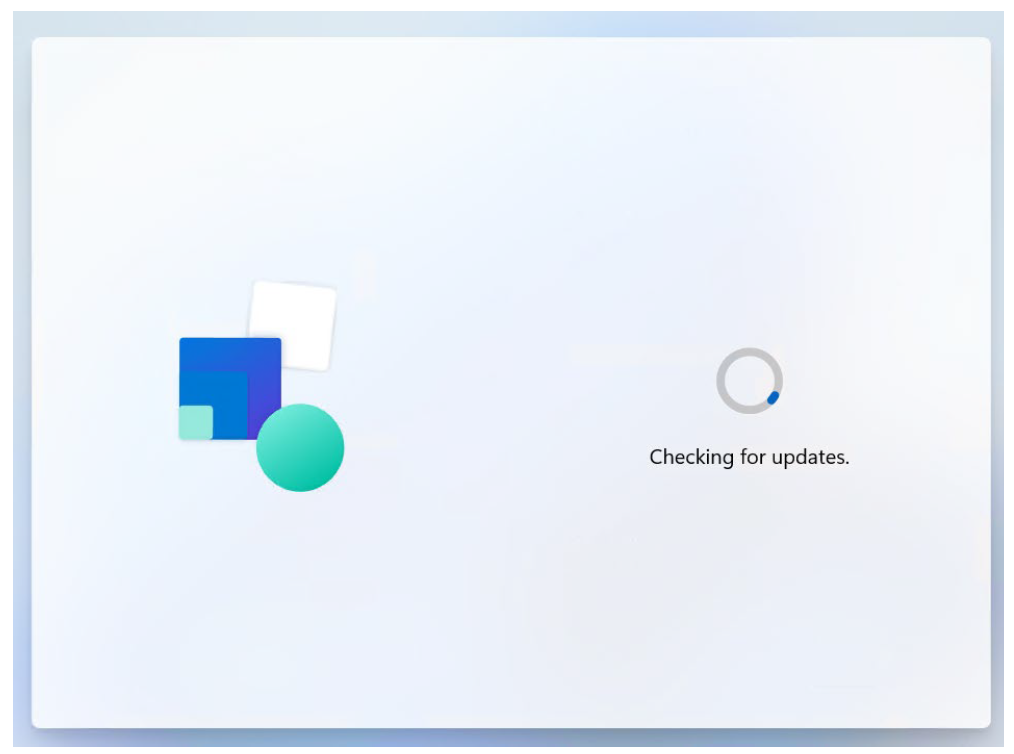
- The device will then check for updates, as shown below. Ensure your device has power and do not turn off your device during this time.
- Once the updates are complete you may find that the device restarts. Simply sign back in to the device using the PIN or sign in option you chose earlier.
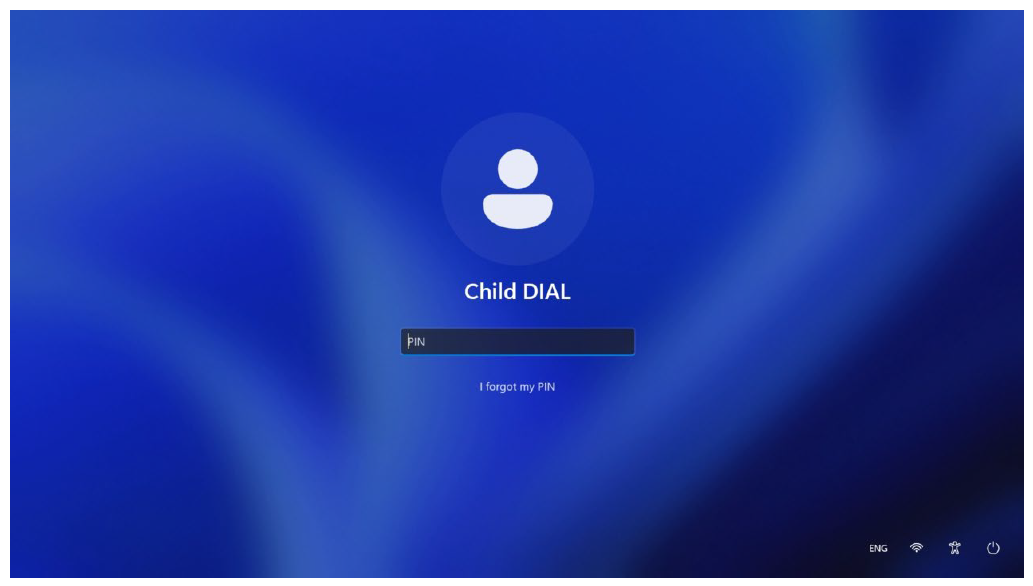
- Now you must check the device is not running the Windows S version.
Click the Windows icon ‘Start’ menu.
Then click on ‘Settings’.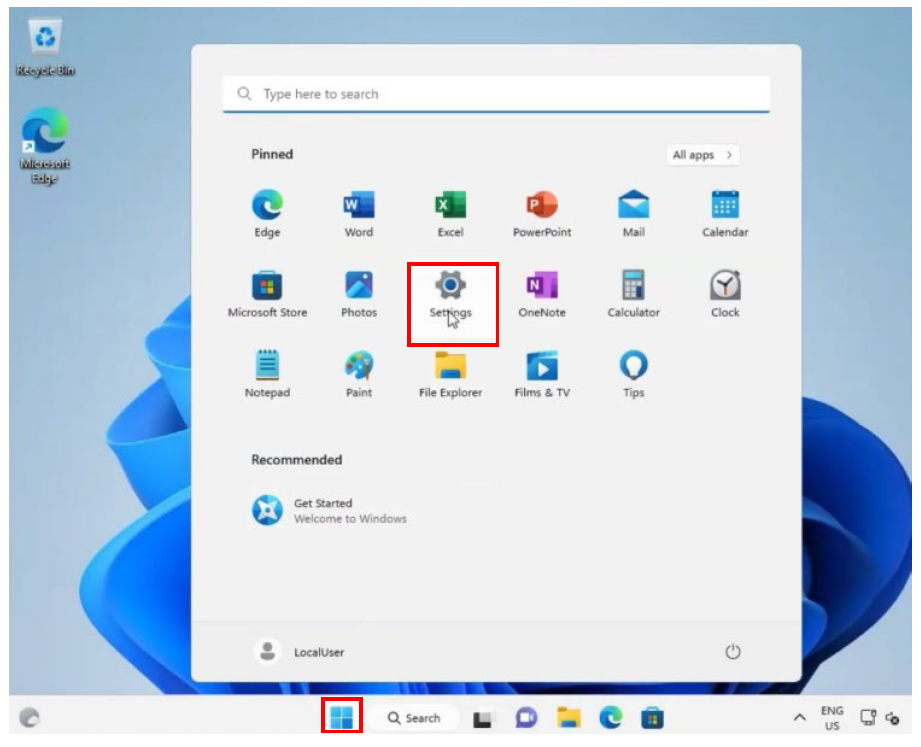
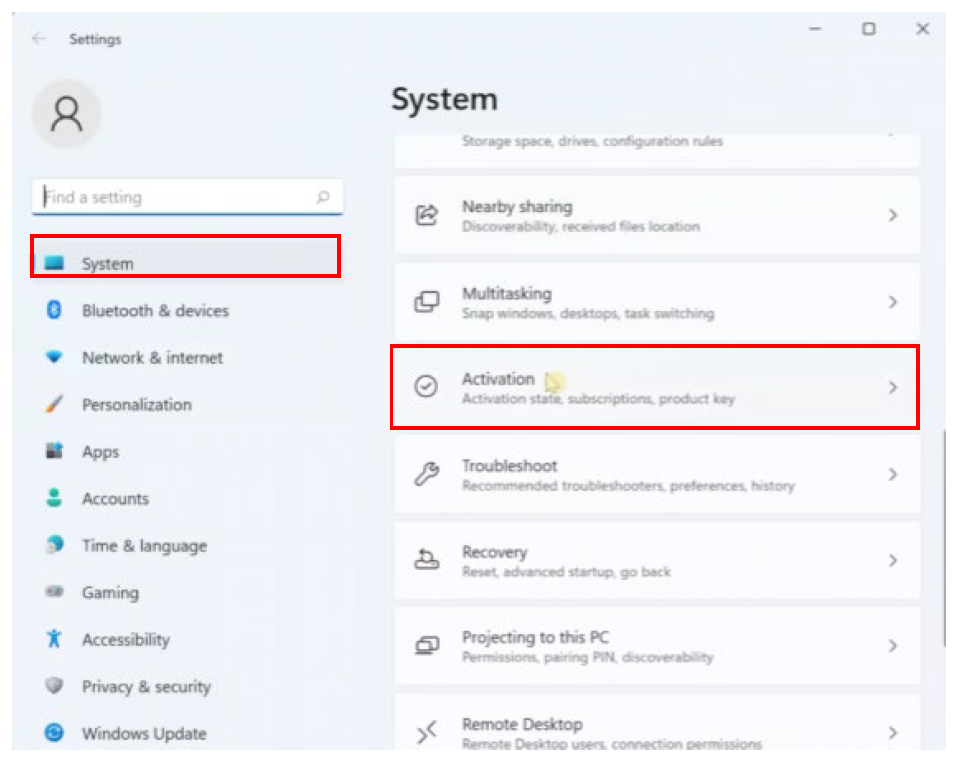
- In the settings menu select ‘System’ and then select ‘Activation’.
- If your device says Windows 11 Home in S Mode, continue with the next step (23).
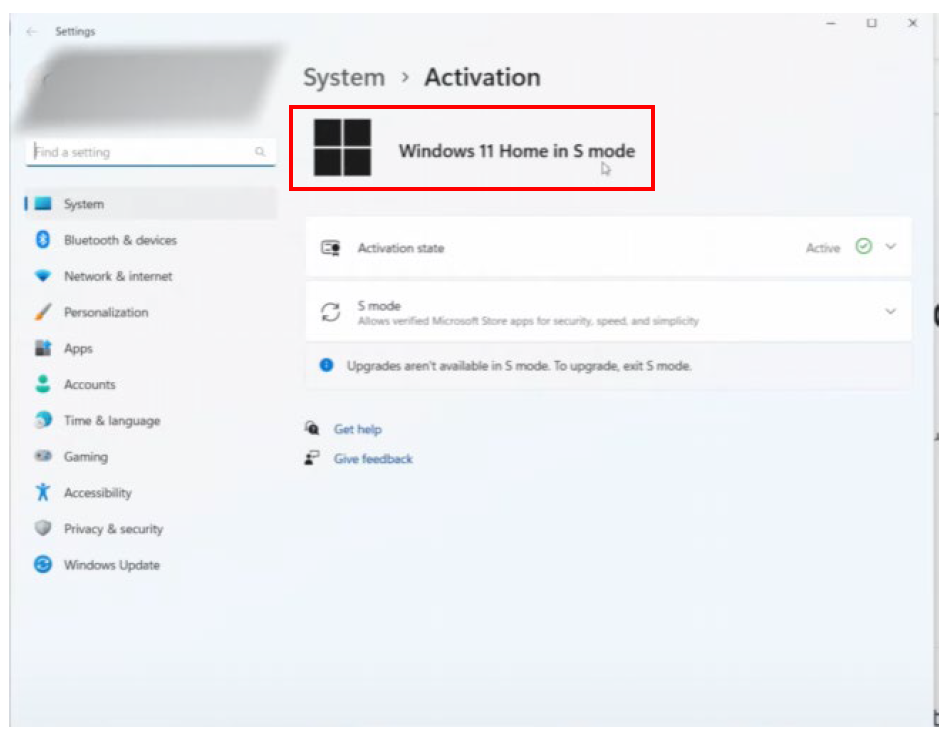 If your device just says, Windows 11 Home, you can skip to step 26.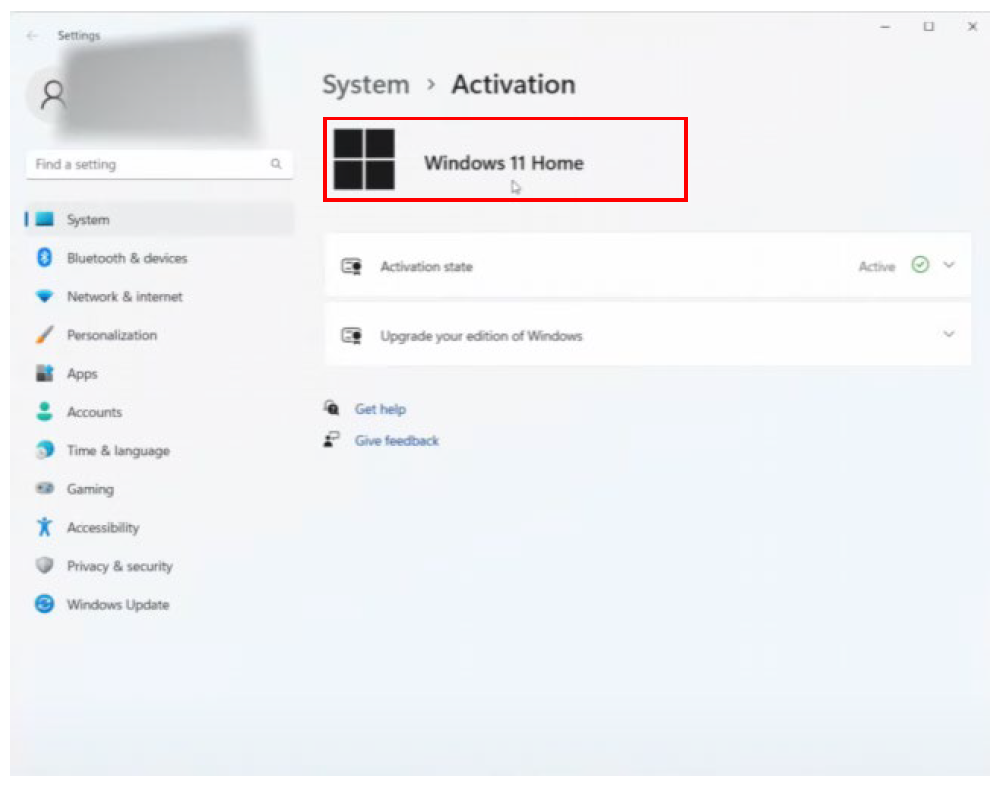
- For a device in S mode, select the second drop down icon next to the S mode menu and then select ‘Open Store’.
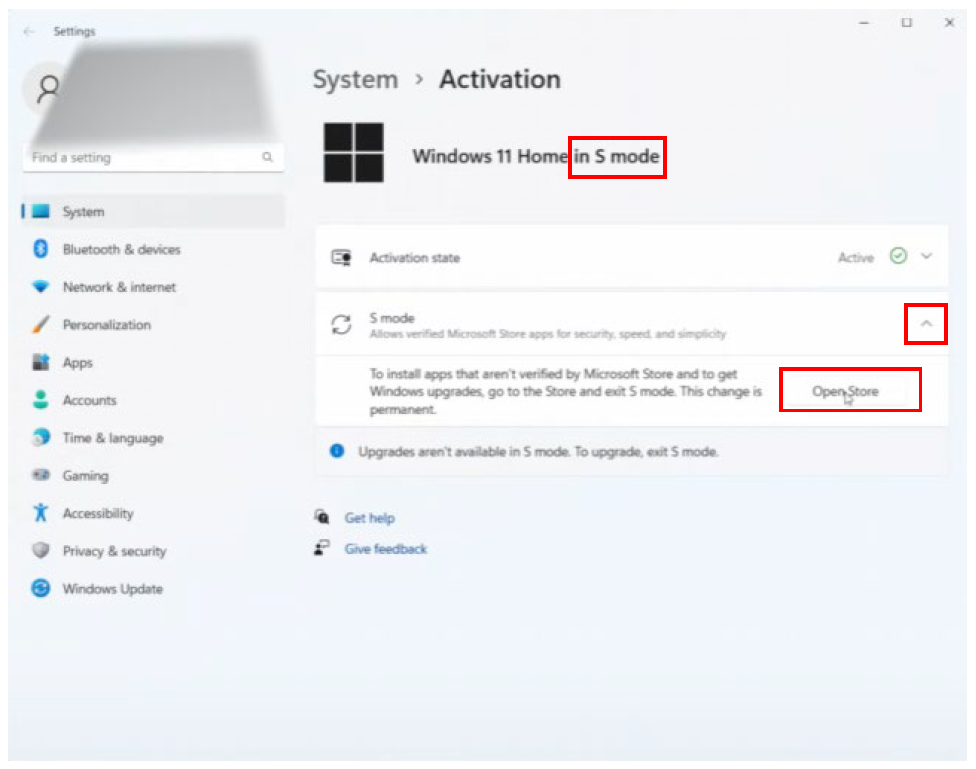
- The Microsoft App Store will open. Click the ‘Get’ button.
Note: You may be asked to sign into the Microsoft Store at this point.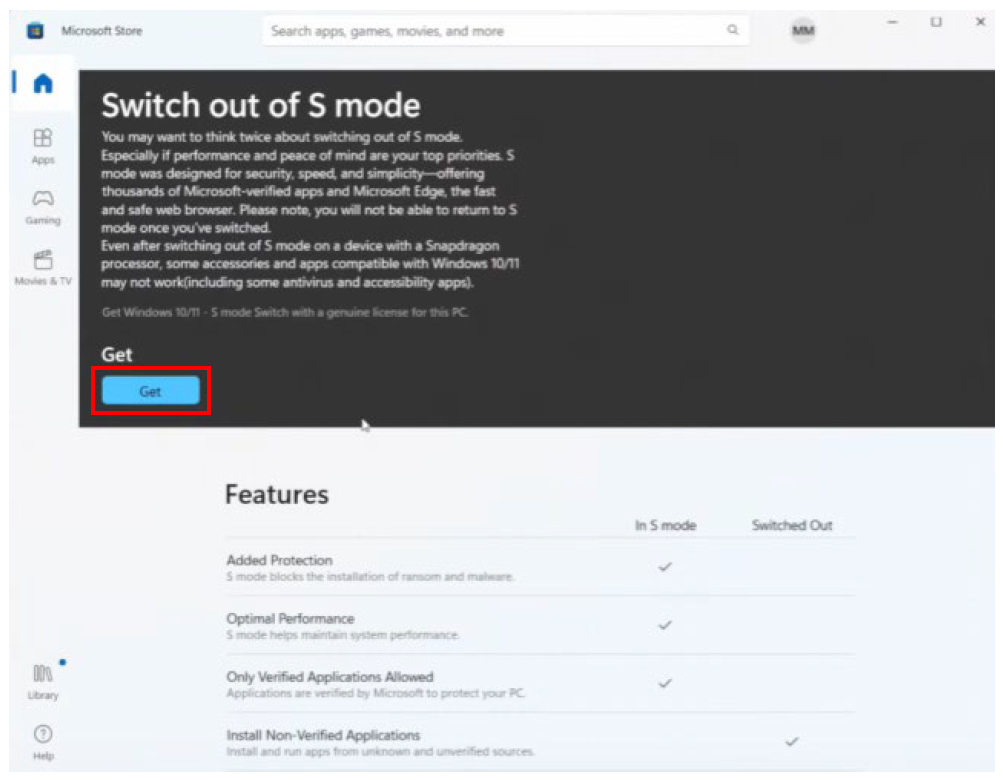
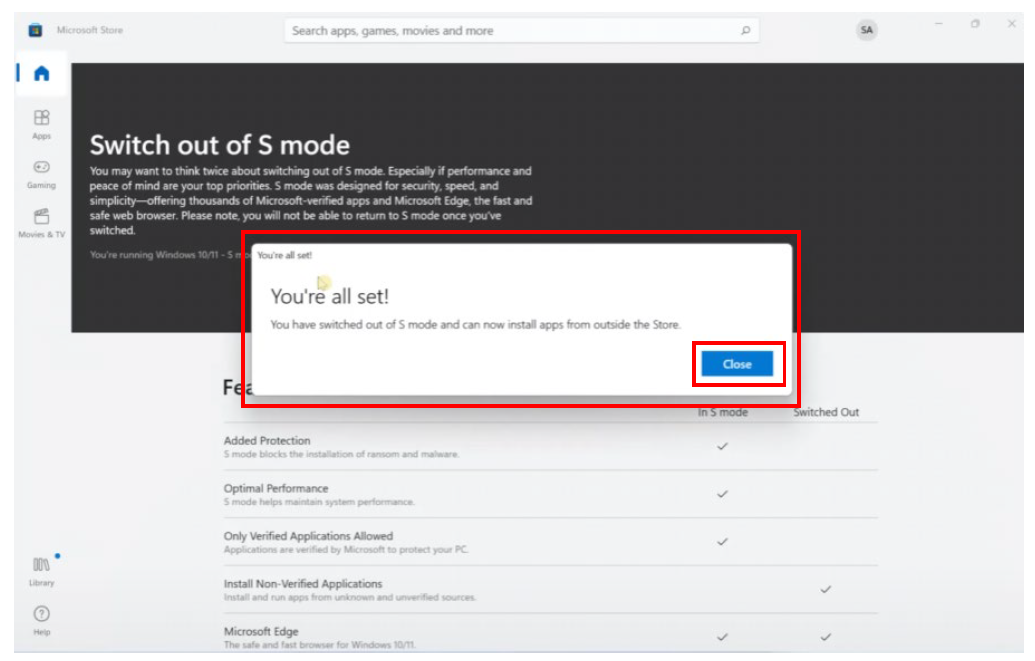
- Windows will change from S mode to the normal version of Windows Home. You will know that the process has completed successfully when the ‘You’re all set’ pop up appears. Click ‘Close’.
- You will now need to adjust the content filters in your Microsoft Family Safety settings for the child account. Open the following link for the Microsoft Family Safety Page in a web browser, not through the app. (The app only provides minimal options to change access to content).
- On the landing page find the sign in button and click ‘Sign in’.
(Note that the image below may be different to what you see)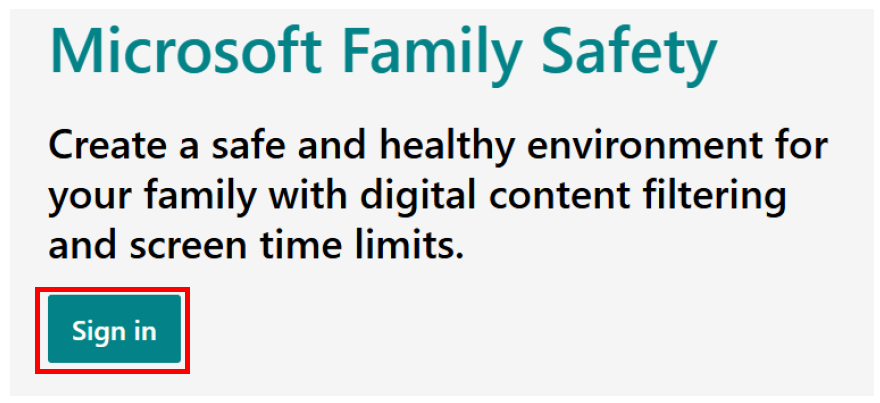
- If you followed the Microsoft instructions linked earlier at Step 8 to set up your child’s personal Microsoft account you should now see a screen similar to the one below showing the student (Child) account signed in and the Family Organiser (Dad in this example) listed.Click on the ‘account manager icon’ in the top right corner then select ‘Sign in with a different account’ to allow the family organiser to sign in.
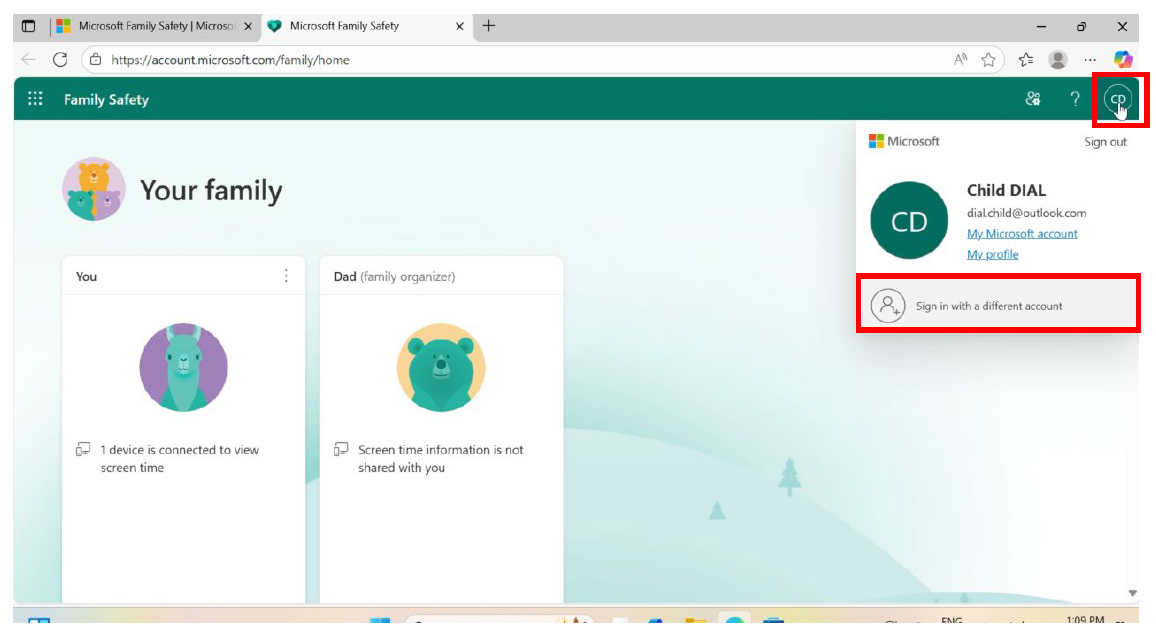
- A Microsoft pop up window will appear like the one below.
Enter your parent Microsoft account information for the “family organiser” and click ‘Next’.
Note: This will be the adult account in charge of managing your Microsoft Family settings shown in the previous screen.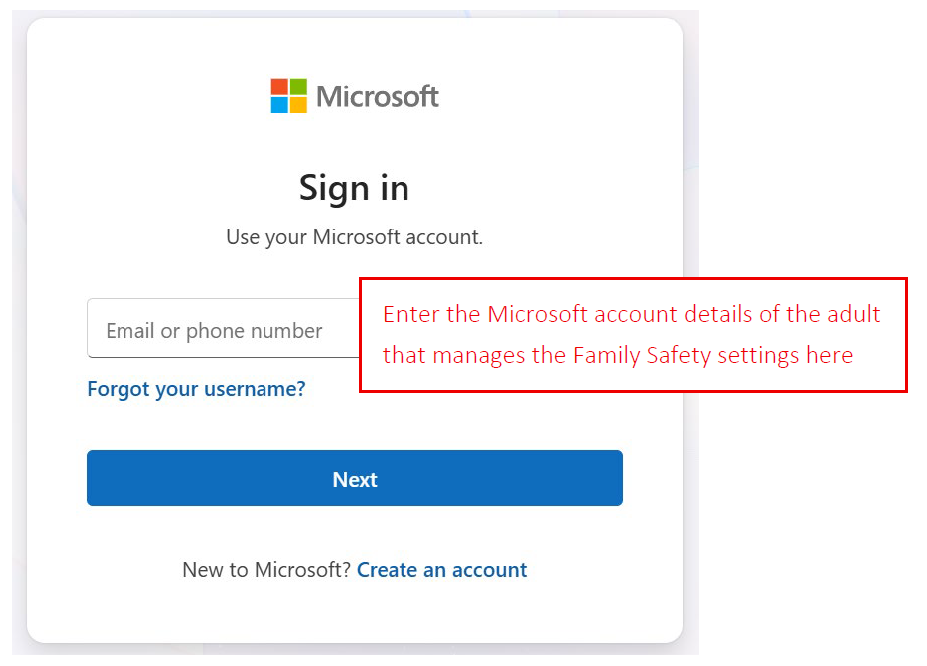
- Select the child’s name in family members list.
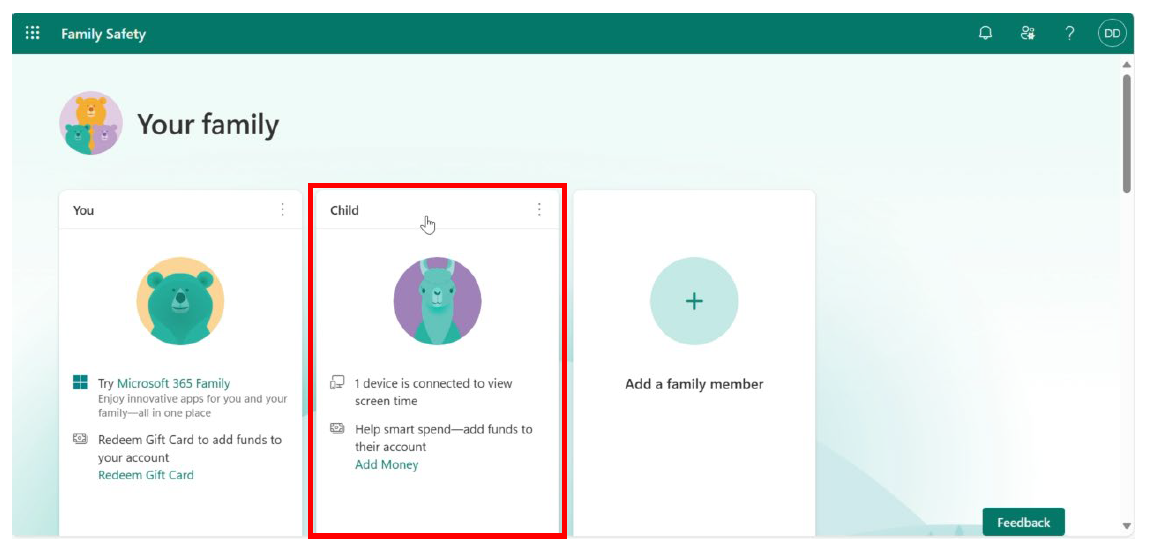
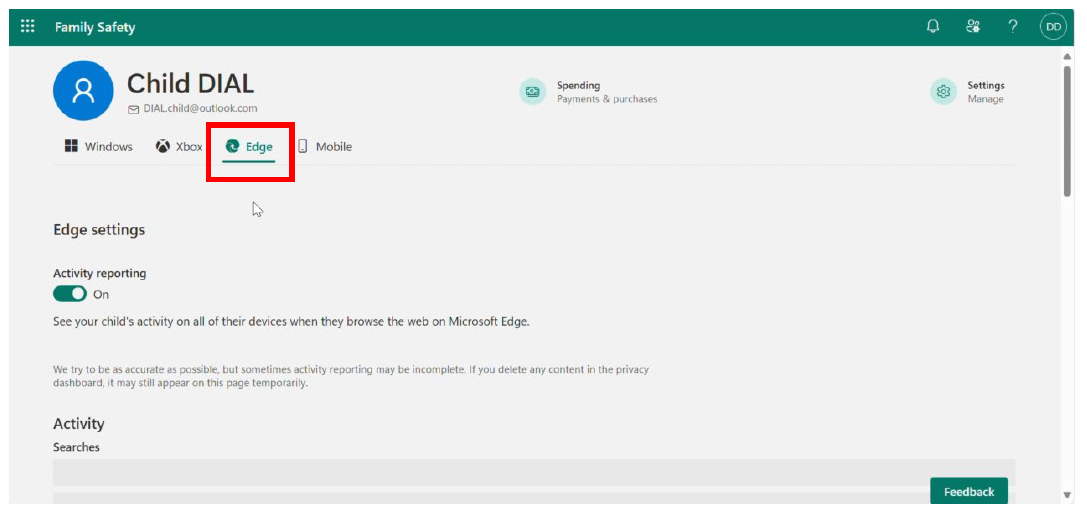
- Select the ‘EDGE’ tab from the platform options at the top of the page, under the family member’s name and email address.
- Scroll down the page until you see the ‘Filter settings’.
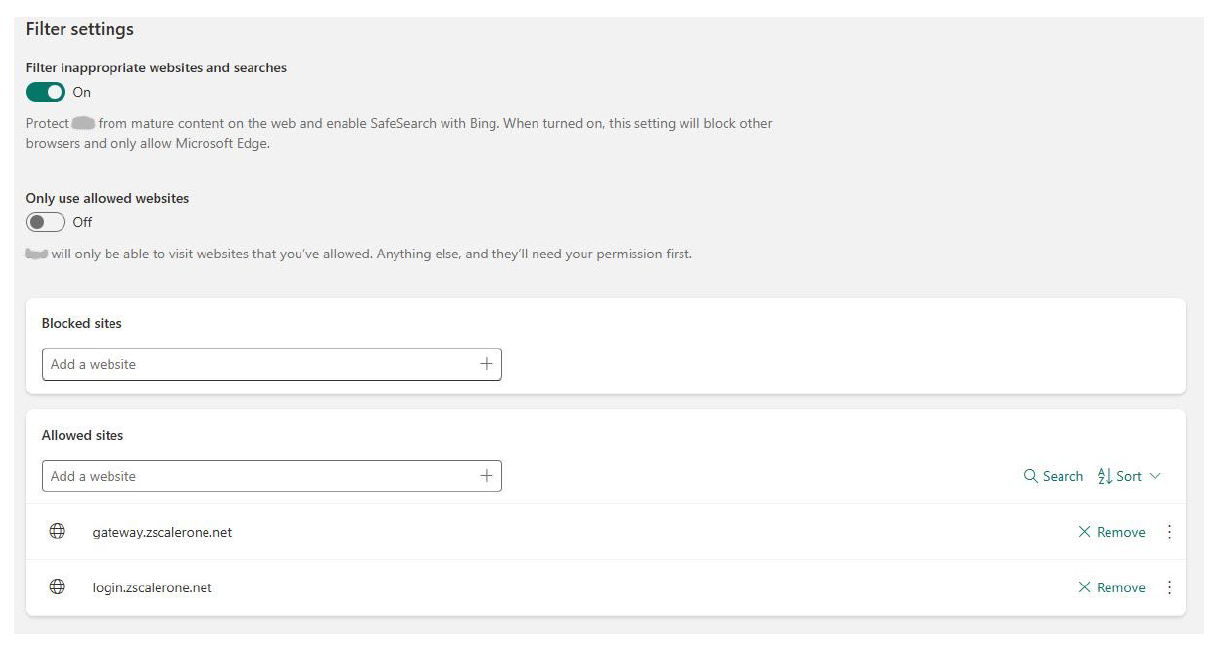
Turn ON ‘Filter inappropriate websites and searches’.
Turn OFF ‘Only use allowed websites’.
- Underneath you will see the ‘Blocked sites’ area.
Ensure there are no sites listed in the block sites that might be needed for school, such as gateway zScaler.
Clear the blocked sites list by clicking on ‘Remove’ next to any sites in the blocked list.
Note that the ‘filter inappropriate websites and searches’ will still be operational and you can add any sites you wish to block, that are not necessary for school, to this list at any time in the future.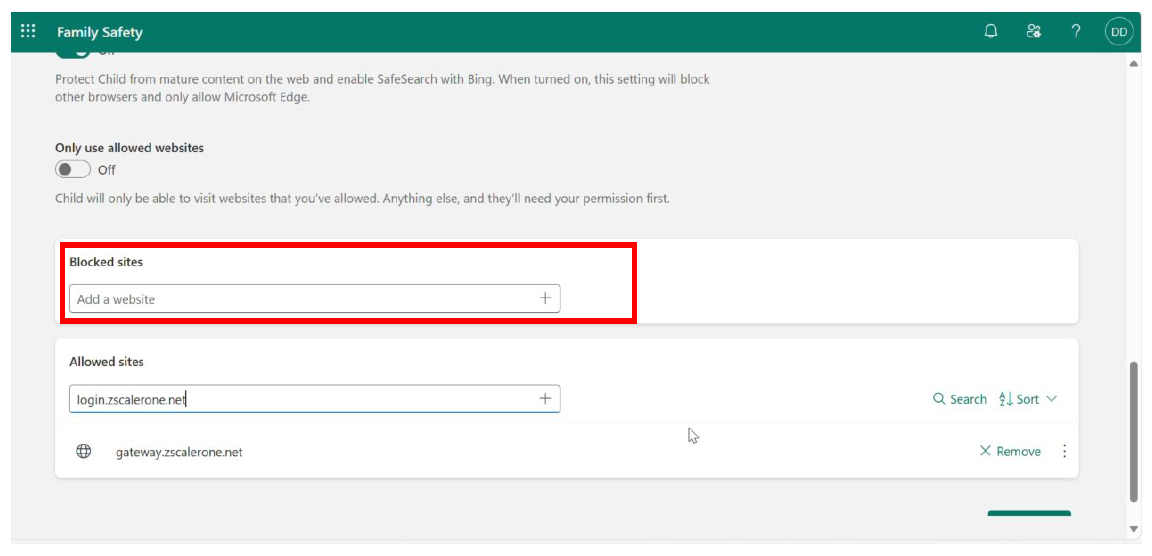
- Next look at the ‘Allowed sites’ area.
Add the following sites to the ‘Allowed sites’ list by typing or copying them in to the ‘Add a website field’ and pressing the + icon.
Ensure these sites are added:
gateway.zscalerone.net
login.zscalerone.net
These two websites are what students are directed to when they need to authenticate on our network to access websites online, beyond our intranet.
- When setting changes are completed correctly it should look like the screenshot below.
- In order to use your device on the school network you must now install the Zscaler certificate.
Open a web browser (such as Microsoft Edge or Google Chrome) and navigate to the ‘MNConnect’ page at https://mncatholic.sharepoint.com/sites/MNSchools.
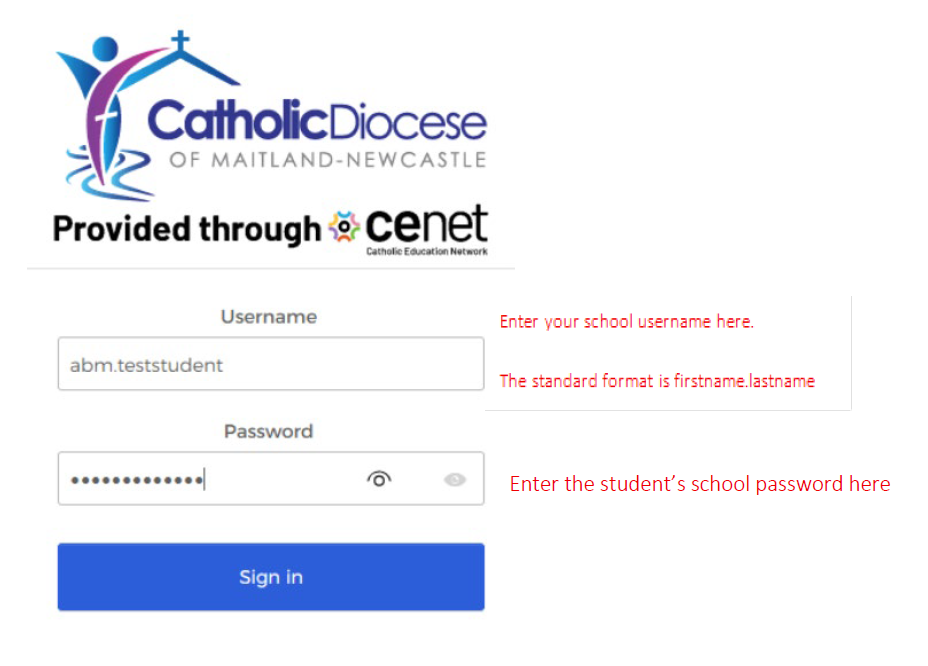
You will be prompted to sign in with the student’s school details. Enter the student’s username (firstname.lastname in most cases) and school password and then select ‘Sign in’.
Note: If you are a new student within our diocese you will not be assigned a student email, username or password until your first day of attendance at school. Please wait until you receive this information before continuing with these instructions.
- From the MNConnect page select the ‘zScaler Certificate’ option.
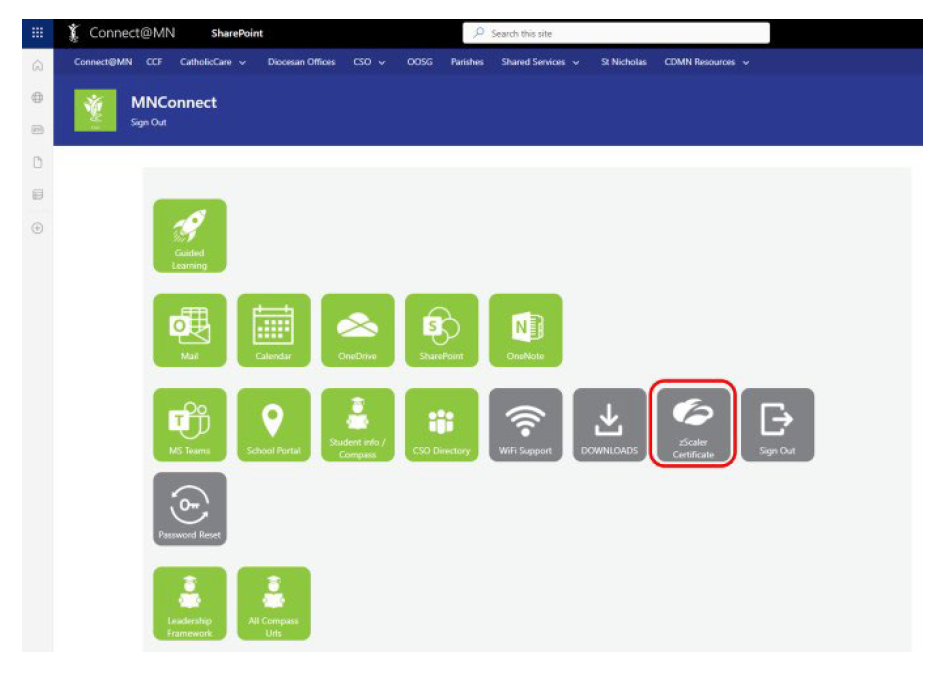
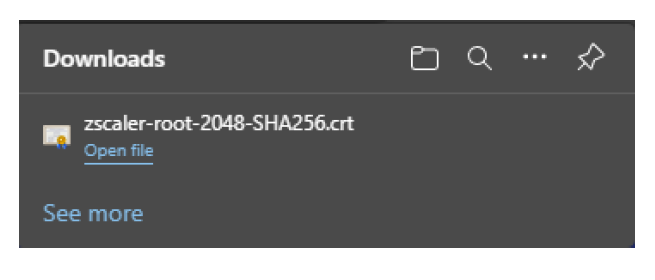
- The zScaler file will save to Downloads. Note: Depending on the browser you are using, it may appear at the bottom of your screen as a pop up or in top right under the Downloads icon. Select ‘Open’ or ‘Open file’.
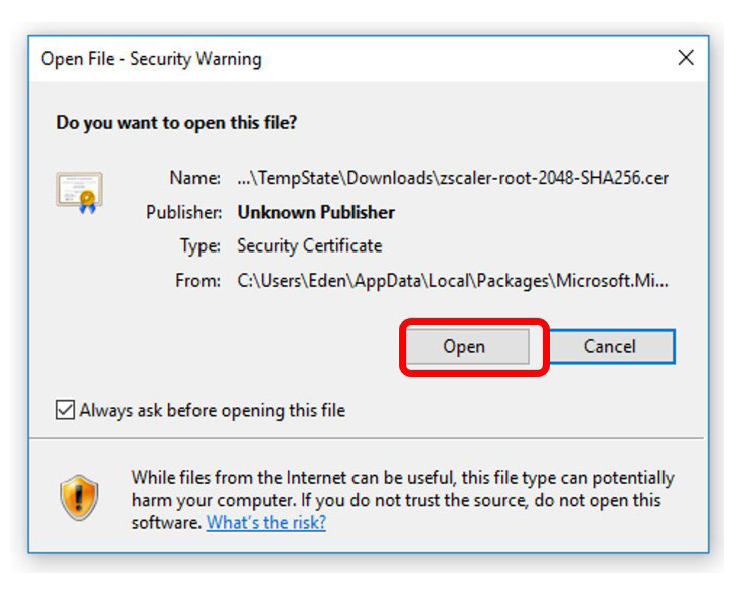
- A security warning box will now appear. Select ‘Open’.
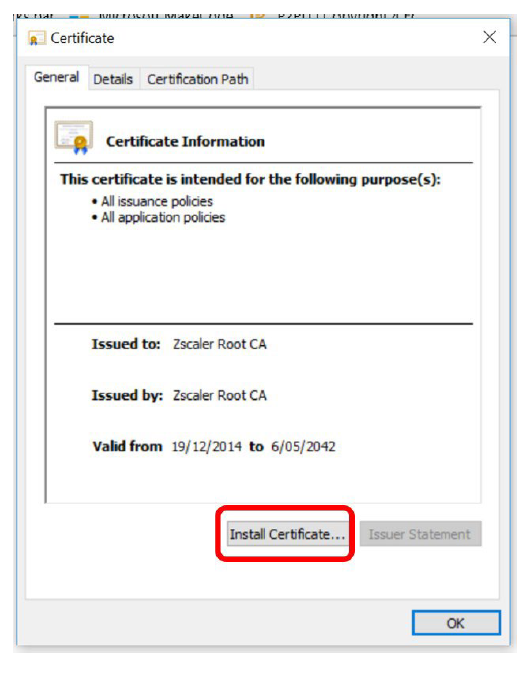
- Select ‘Install Certificate’.
- Select ‘Local Machine’ and then click ‘Next’.
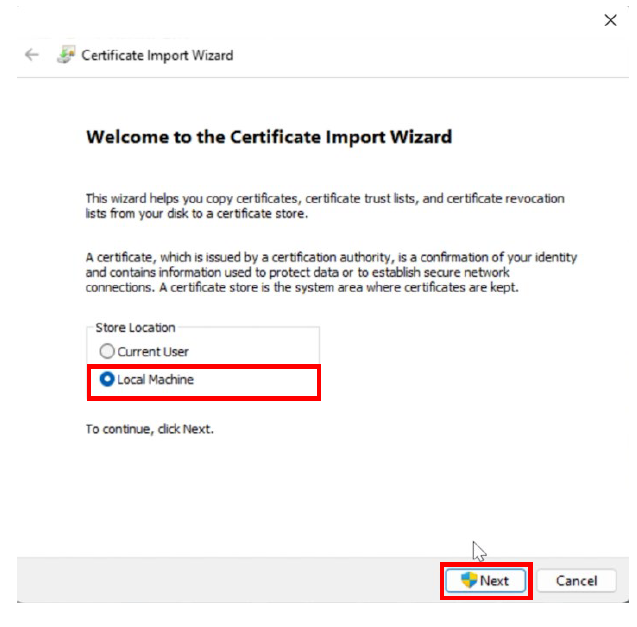
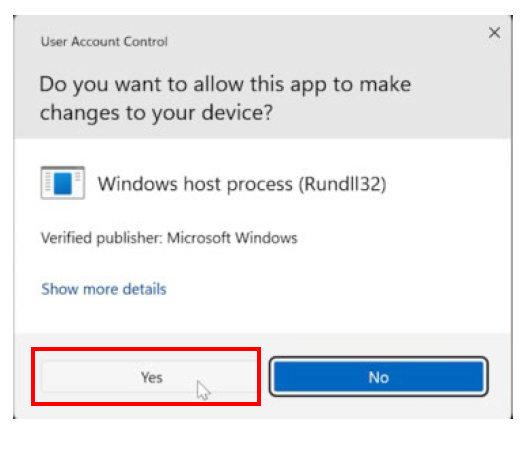
- You will get a pop up asking for permission to make changes to your device. Select ‘Yes’.
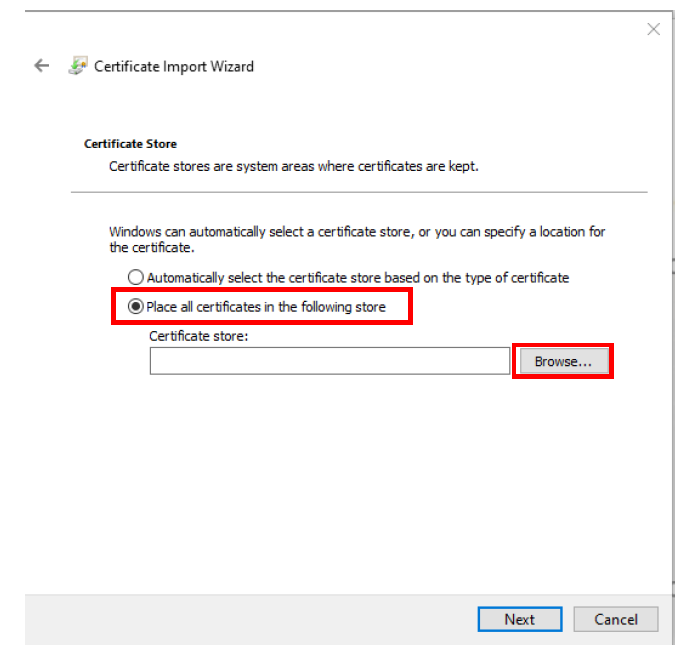
- Now select the option to ‘Place all certificates in the following store’ Then click ‘Browse’.
- A pop up window will appear with folders listed. Select the folder called ‘Trusted Root Certification Authorities’ Then click ‘OK’.
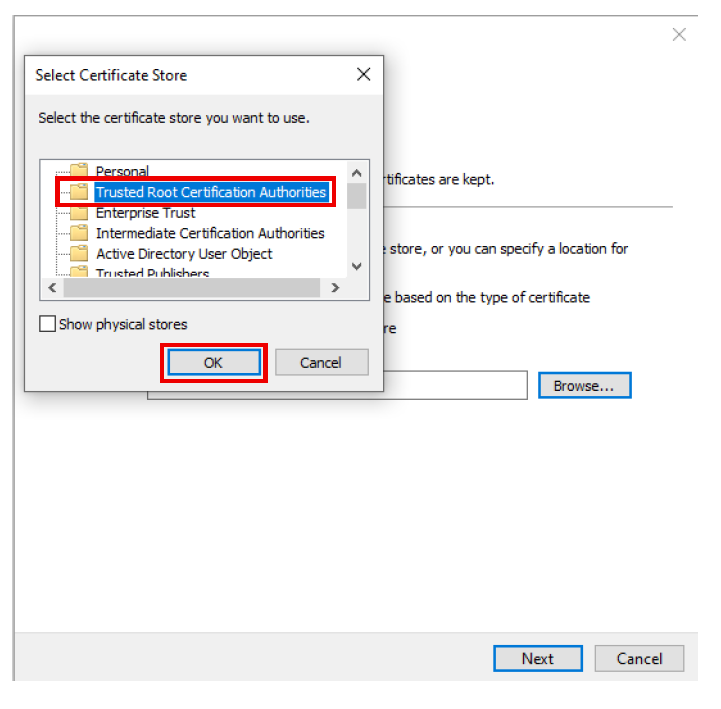
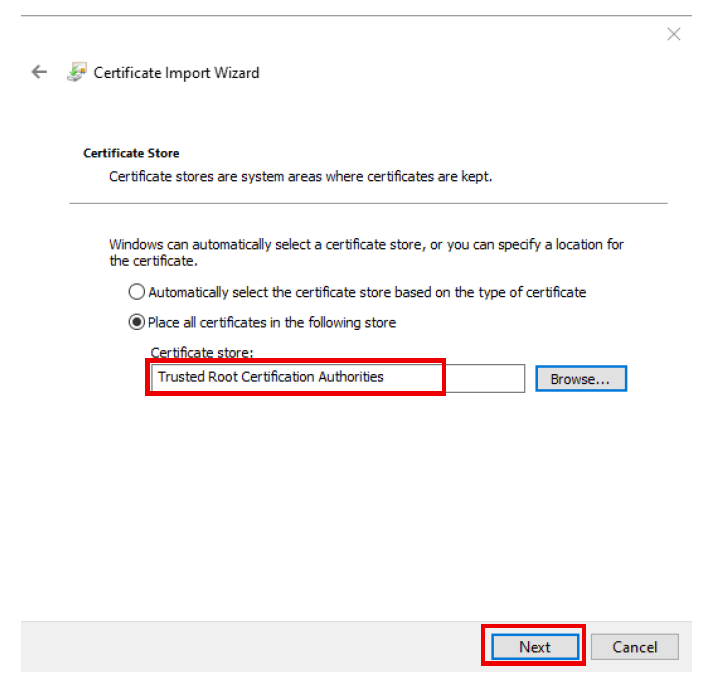
- Check that the folder named ‘Trusted Root Certification Authorities’ now appears in the box next to the browse button then click ‘Next’ to continue.
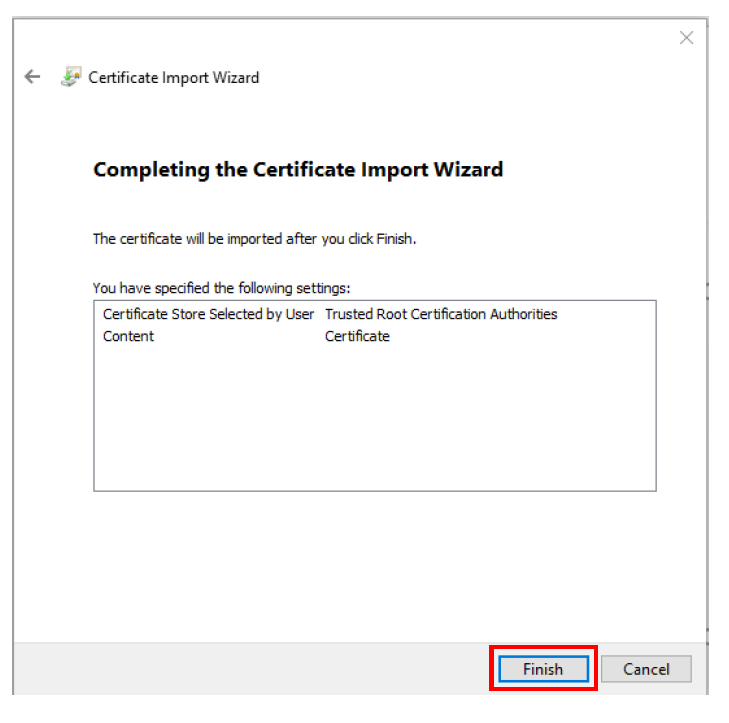
- Now click ‘Finish’.
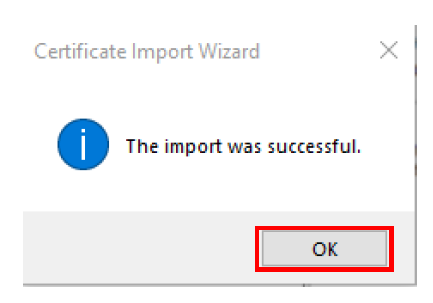
- You should now see a pop up to say that the Security Certificate has been imported successfully. Click ‘OK’ Your device will now be able to use the school network.
 Your student BYOD device is now completely setup and ready to use on the school network.
When you take your device into school you will select the wifi network called “CSMN” to connect to the school wifi.
Your school and teachers will provide any other specific information on how you will use your device in the classroom.
Please remember that this device will not be managed in anyway by the school or diocese. All management to ensure the device will work at school, such as keeping the device up to date and managing family safety settings, are the responsibility of the parents.