Bring Your Own Device (BYOD) refers to a technology model where students bring personally owned devices to school for the purpose of learning.
BYOD programs offer several benefits for primary and secondary students. It encourages the development of digital literacy skills, communication and collaboration, fosters creativity and promotes self-direction that are essential in today’s digital world. BYOD also supports personalised learning experiences, allowing students to access educational resources and assistive technology features that cater to their individual needs and preferences. Moreover, such programs can enhance digital collaboration in the classroom, increasing learning opportunities and providing access to a wealth of digital resources during and outside of class.
To assist parents with the purchase and set up of a suitable BYOD device we have minimum specifications and set up guides below, in addition to your individual school advice. This ensures that you purchase the right device and setup it up correctly for your child to ensure it will run efficiently in our schools.
Please contact your school directly with any questions about BYOD.
Set-up Guides
Find out what Set Up Guide to use for your device, based on your version of Windows. Check the product box or read more here.

BYOD Windows Education Managed Setup Guide
This guide will step you through how to set up a new Windows 11 Education (or Windows 11 Professional) device and enrol in the Managed BYOD.
Access Guide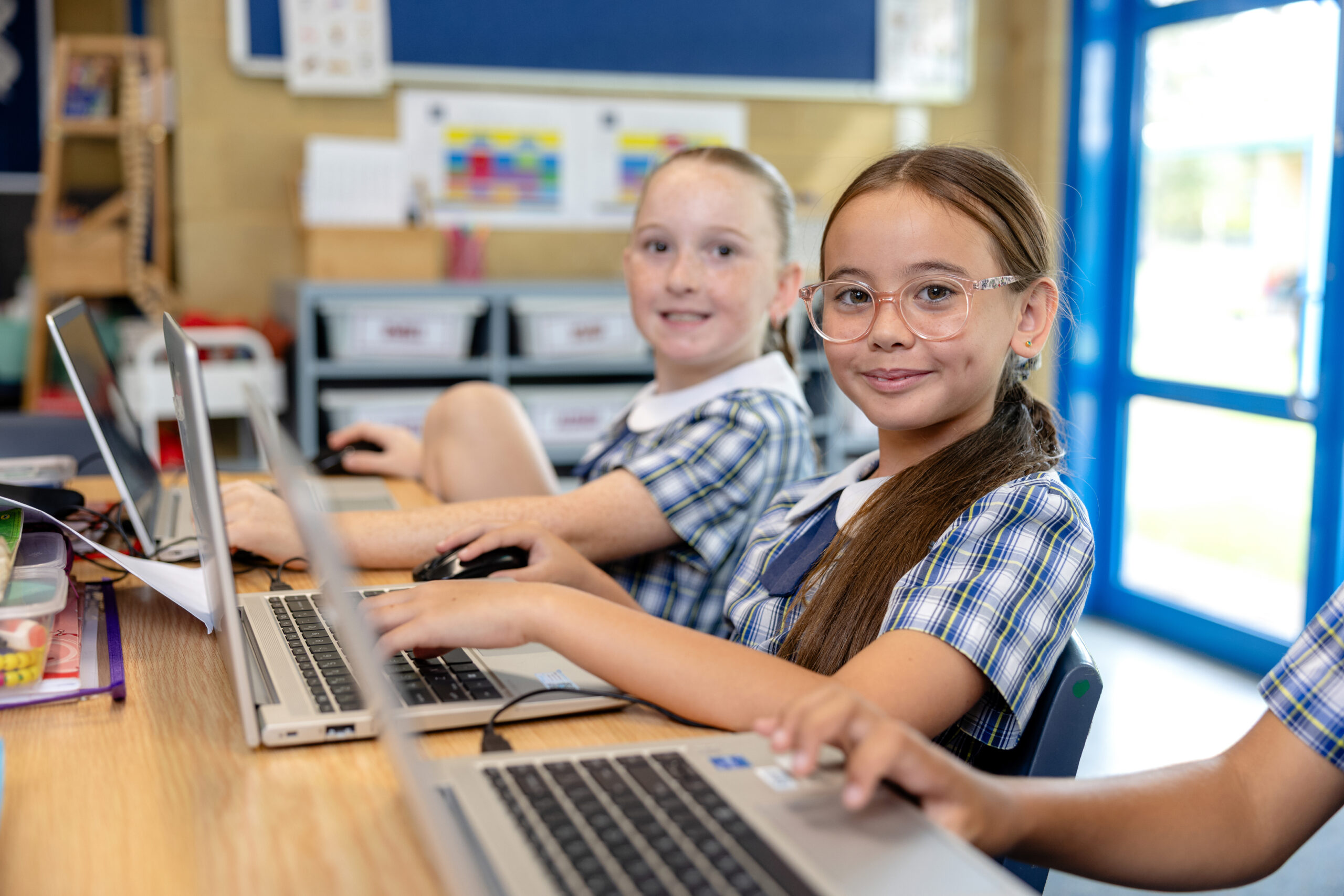
BYOD Windows Home Upgrade to Managed Setup Guide
This guide will step you through how to set up a new Windows 11 Home device and Upgrade to Managed BYOD.
Access Guide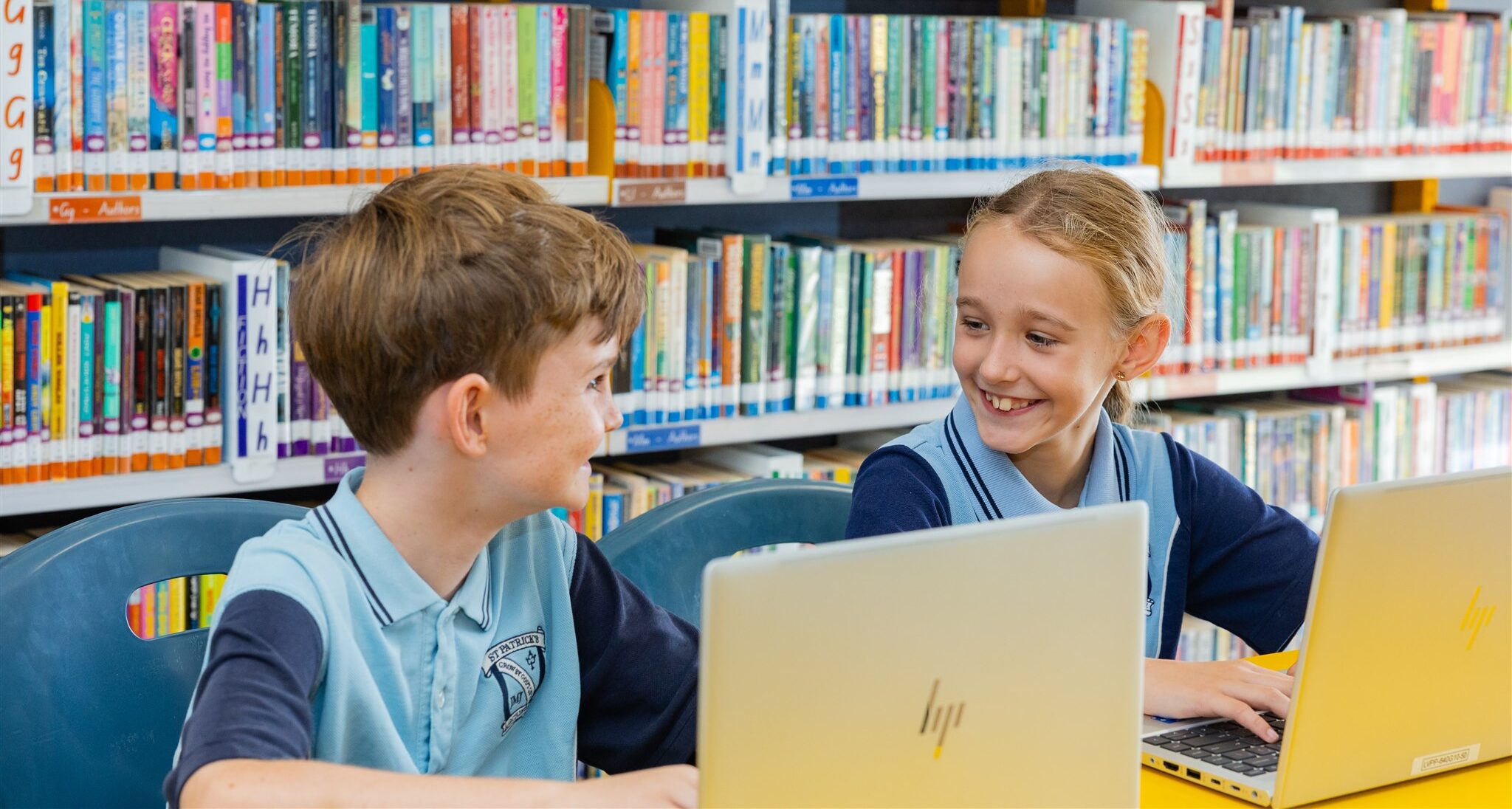
BYOD Windows Home Not Managed Setup Guide
This guide will step you through how to set up a new Windows 11 Home device.
Access GuideMore information
Digital Safety and Security
Protection on our Diocesan Wifi Network
Parents should be aware that general internet browsing by your child from home or locations other than school are not monitored or filtered by the school when they are using their BYOD device. We recommend implementing safeguards at device and network level to ensure continued protection for your child while using their device outside of school.
Windows Defender
 Your Windows device comes with built in antivirus and malware protection through Windows Defender. This software is built into Windows 11, routinely updated, and provided at no extra cost.
If you choose to run non-Microsoft protection software on the device, you must ensure that the software is configured to allow your child to install applications, install security certificates, access the CDMN school Wi-Fi network and browse the internet. This ensures your child is able to use the device for learning at school and will not be hindered by device restrictions.
If you’re using a non-Microsoft antivirus / anti-malware product on your device, you may be able to run Microsoft Defender Antivirus in passive mode alongside the non-Microsoft antivirus solution. To learn more, see Microsoft Defender Antivirus compatibility.
Safety and Security at Home
To safeguard your child’s safety and security at home, you may like to consider:
- Adjusting your WiFi router settings to block access to specific websites.
- Using parental controls on the devices your child uses that connect to your home network to filter harmful content
- Using a personal Microsoft account for your child’s log in profile when not at school, and utilising Microsoft Family Safety features with that personal account to filter access to harmful content and monitor usage.
Digital Literacy
In the NSW Curriculum, the Australian Curriculum general capabilities, cross-curriculum priorities and other areas identified as important learning by NESA are defined as ‘capabilities and priorities’.
The digital literacy capability encompasses the interrelated knowledge, skills and understanding students need in order to access and contribute to the world around them.
This capability develops a student’s understanding and awareness of the role of technology in society. Alongside encouraging students to develop their own digital identity in a socially responsible way, the capability enables students to be informed about the ethical aspects of the use of different technologies.
Students are supported to develop skills to connect, communicate and collaborate with others effectively and safely in a digital environment and to gather, analyse and evaluate digital information as a part of learning.
Frequently Asked Questions
For more detailed FAQs relating to the Managed BYOD Program, click here.
What type of devices are used in schools?
For BYOD the recommended device is a Windows device. This is the main device type used in BYOD across our schools.
Where can I purchase a device?
Devices can be purchased from school’s designated purchasing portal, your local retailer or online. Check with your child’s school to ascertain if they have a purchasing portal.
Can I use a refurbished or second-hand device?
If you have an existing device that meets the minimum specifications, your child may use this for their BYOD device. It is important that the device’s battery will last the full school day and that it is running efficiently. We recommend resetting the PC to restore the device back to factory settings. This will remove any personal files and reinstall Windows. For more information on how to reset your device please see instructions from Microsoft here. Once your device has been reset, please follow the instructions for setting it up as new device which you can find at the top of this page.
Do I need to buy a Microsoft 365 license?
No. You do not need a Microsoft 365 License. The M365 suite of software (Word, PowerPoint, Excel etc.) is provided to every student of the Maitland-Newcastle Diocese free of charge. They simply need to sign into these applications with their school email address and log in details. Most devices come preinstalled with Microsoft 365 applications or they can be downloaded from the Microsoft Store on your device.
The Microsoft 365 suite of applications can also be downloaded at portal.office.com/account
What safety features does the diocese provide?
We provide protection, monitoring and content filtering on our Diocesan WiFi network.
What can I do at home to learn more?
You will find information about keeping your child safe online and when using devices outlined on the eSafety Commissioner website.
I’m having trouble with Family Safety Settings. What can I do?
Ensure that you have followed all the correct steps in the setup guide for your device, linked at the top of this page, for Family Safety settings. You can also find more information from Microsoft at their support page for Microsoft Family Safety.
What if I have more questions?
Please contact your child’s school.